
Read the Control Map
The Control Map is a graph of an Agent’s configured access: the Agent, the Connections it can reach, and the policies on each path. Use it to answer “what can this Agent touch, and what governs it?”
The map shows configuration, not proof that a call ran. Use it before a rollout to inspect reachability, then use Activity to verify actual governed actions.
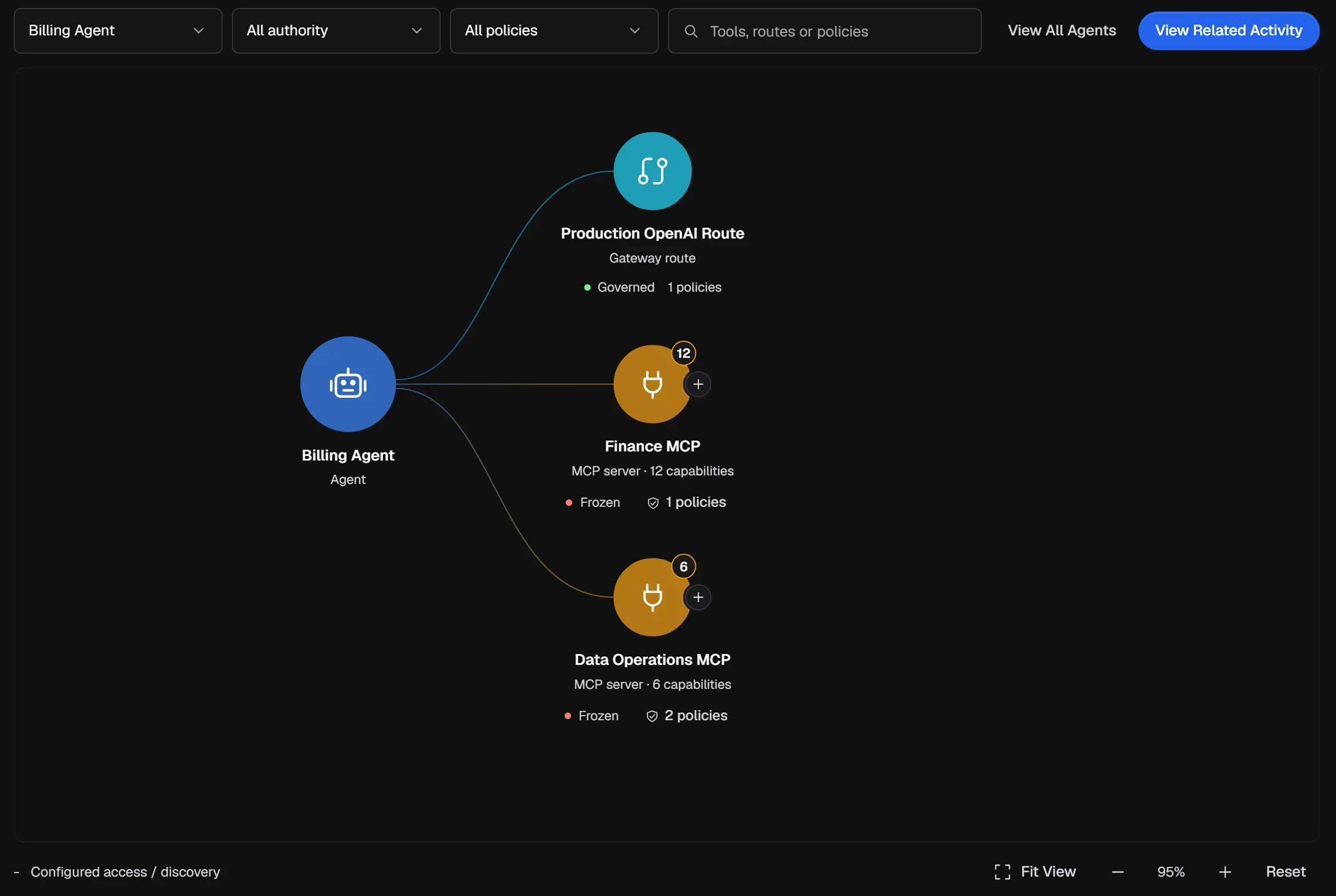
Focus the map
Section titled “Focus the map”Use the controls along the top:
- Agent: choose which Agent to draw. View All Agents shows every Agent in the workspace.
- Authority: show All authority, or only Approval controls, Block controls, or Changed / frozen paths.
- Policy: show only paths governed by one Policy.
- Search: find a tool, route or policy by name.
Read a node
Section titled “Read a node”Each node to the right of the Agent is a Connection:
- its name and type, such as MCP server · 12 capabilities or Gateway route
- its state: Governed, or Frozen when tool changes are waiting for review
- how many policies apply to that path
- a badge with the number of tools
Select a node to inspect its Connection and policy context. Select + on a Connection to expand its tools.
Move around
Section titled “Move around”Drag the canvas to pan. When the canvas has focus, use Ctrl or Cmd with + or - to zoom, and 0 to fit. Fit View, the zoom buttons and Reset do the same. Tab moves between nodes and controls.
Compare configuration with activity
Section titled “Compare configuration with activity”The map shows what an Agent can do. To see what it did, select View Related Activity. This opens Activity filtered to the same Agent.
A path that is configured but never used may be access the Agent doesn’t need. A Frozen path means calls through it are paused; see Review tool changes.
You can also open the map from an Agent (Open Control Map) or from an Alert.
A practical review
Section titled “A practical review”- Choose one production Agent and expand every Connection.
- Confirm that each Connection belongs to the expected environment and has a named owner.
- Filter to Changed / frozen and resolve every unexpected path.
- Filter to Approval controls and Block controls to confirm consequential tools have the intended boundary.
- Open related Activity and look for configured paths that are unused, or used paths that the map does not explain.
If the map and Activity appear to disagree, confirm that both views use the same workspace and Agent. Then check whether the call bypassed Aethis, whether the Connection was attached after the recorded event, or whether a tool definition changed.