
Quickstart
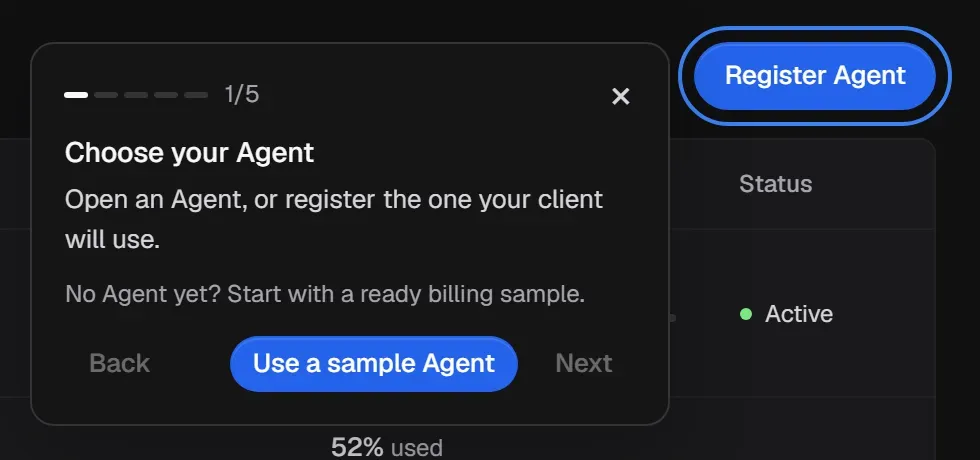
This quickstart follows the Protect your first Agent guide built into the dashboard. It takes one Agent from nothing to a recorded, governed decision in five steps:
- Choose your Agent
- Connect the Agent
- Set one clear boundary
- Try the boundary
- Inspect the Action Record
Open Get started in the sidebar. The guide starts automatically on your first visit and highlights the control to use at each step. You can pause it at any time with Pause tour and pick it up again from Get started.
1. Choose your Agent
Section titled “1. Choose your Agent”An Agent in Aethis is the identity your client uses when it calls tools. Open an existing Agent, or register the one your client will use.
-
On Agents, select Register Agent.
-
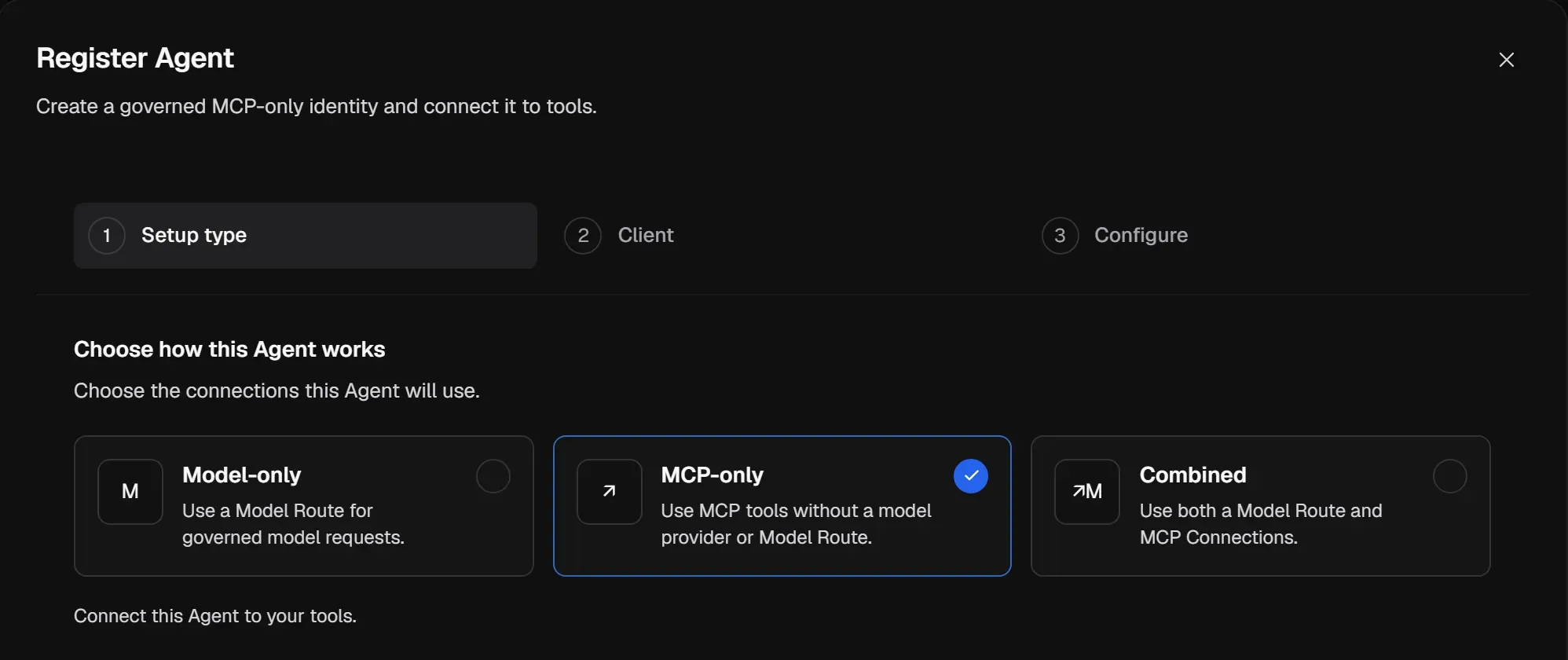
Under Choose how this Agent works, select MCP-only, then Continue.
-
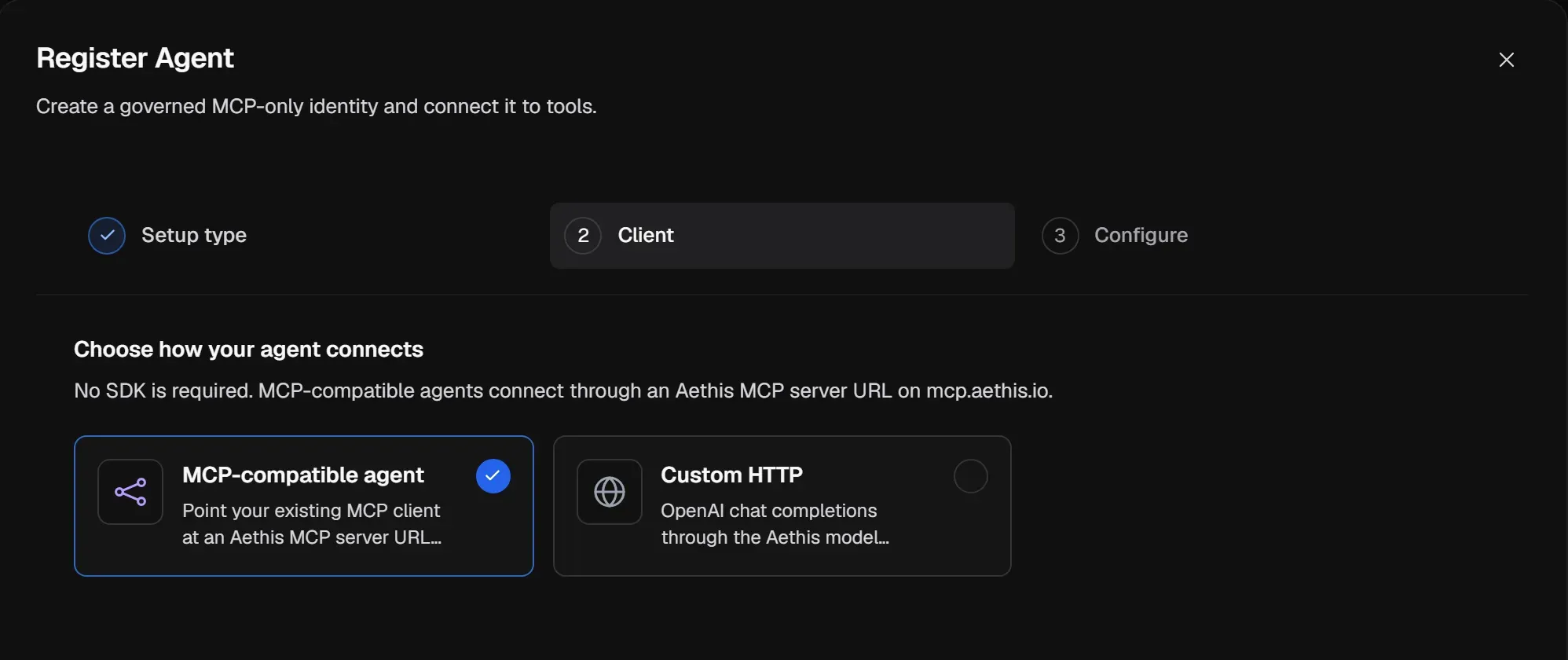
On the Client step, under Choose how your agent connects, select MCP-compatible agent, then Continue. No SDK is required.
-
Enter an Agent Name, check the Owner and Workspace, and optionally choose MCP Connections. Select Register Agent.
-
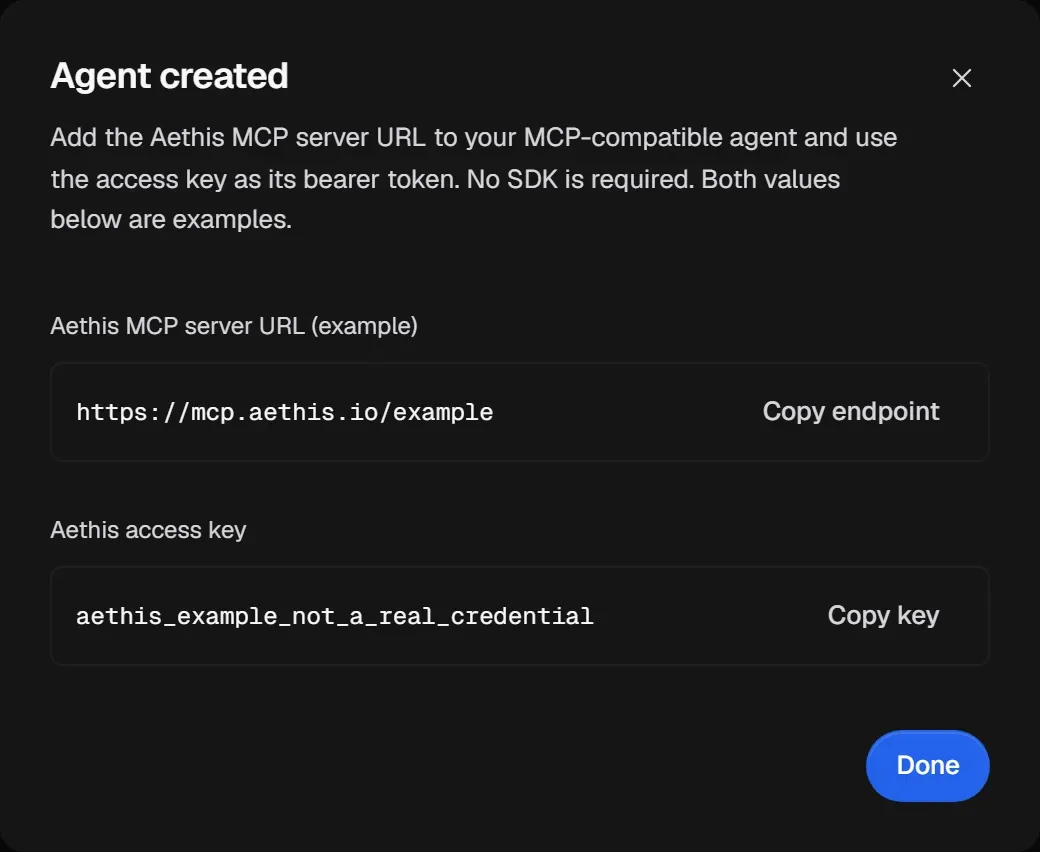
The Agent created dialog shows the two values your client needs: the Aethis MCP server URL and the Aethis access key. Copy both, store the key in your secret manager, then select Done.
Point your agent at Aethis
Section titled “Point your agent at Aethis”In your MCP-capable agent or client, replace the upstream MCP server address with the Aethis MCP server URL you copied, and send the Aethis access key as a bearer token:
URL: https://mcp.aethis.io/v1/agents/{agent_id}/mcpHeader: Authorization: Bearer <aethis_agent_token>Each Agent has one Aethis MCP endpoint, whatever the number of Connections it uses. The URL identifies the Agent and isn’t a secret; the access key is the Agent’s scoped credential and is. Copy the URL from the dashboard rather than typing it by hand.
From then on, your agent’s tool calls go to Aethis first. Aethis resolves each call through the Agent’s assigned Connections, governs it, and forwards allowed calls to your existing upstream MCP server. When you attach more Connections later, you don’t change anything in your client.
2. Connect the Agent
Section titled “2. Connect the Agent”A Connection is the upstream MCP server the Agent is allowed to reach through Aethis.
-
Open the Agent and select Connections.
-
Select Attach connection, choose an MCP Connection from this workspace, and select Attach MCP Connection.
-
If the server isn’t in Aethis yet, select Manage accounts in the guide (or open Connections) and add the MCP server first. Then connect its account, select Refresh tools, and review any changes.
3. Set one clear boundary
Section titled “3. Set one clear boundary”Attach a published Policy to the Agent. A Policy holds the rules that decide whether each action is allowed, needs approval, or is blocked.
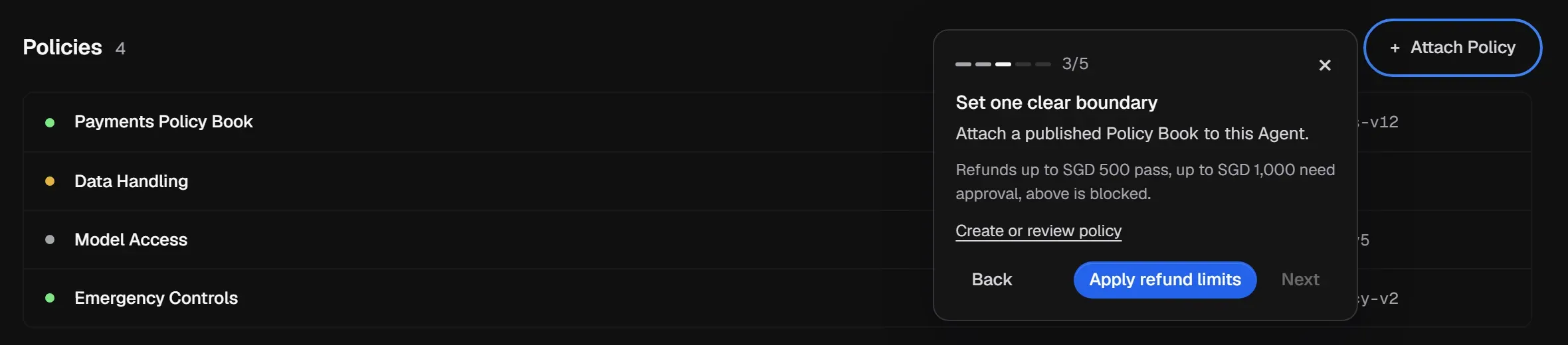
- With the sample Agent, select Apply refund limits. Refunds up to SGD 500 pass, refunds up to SGD 1,000 need approval, and anything above is blocked.
- With your own Agent, select Create or review policy, build the rule for your Connection, publish the version, then return to the Agent and select Attach Policy. See Create and publish a Policy.
4. Try the boundary
Section titled “4. Try the boundary”You can check a boundary without running anything.
-
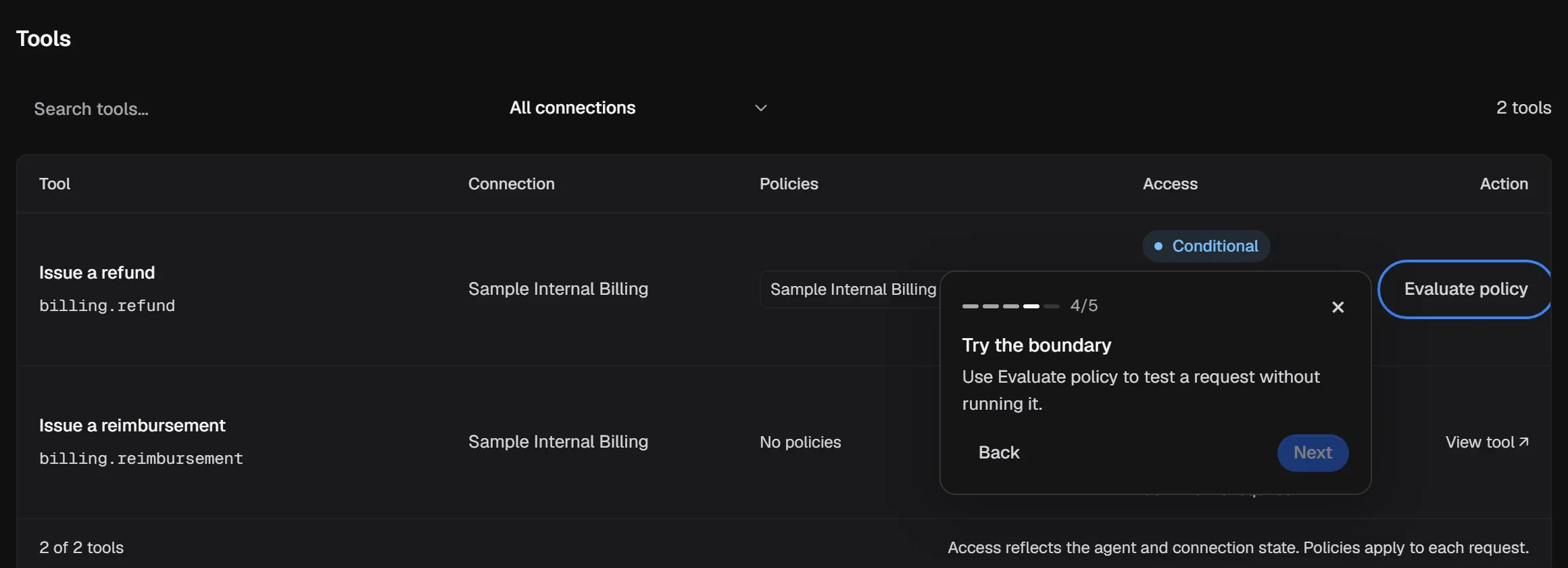
Open the Agent’s Tools section. Tools that a policy can evaluate show Conditional access and an Evaluate policy button.
-
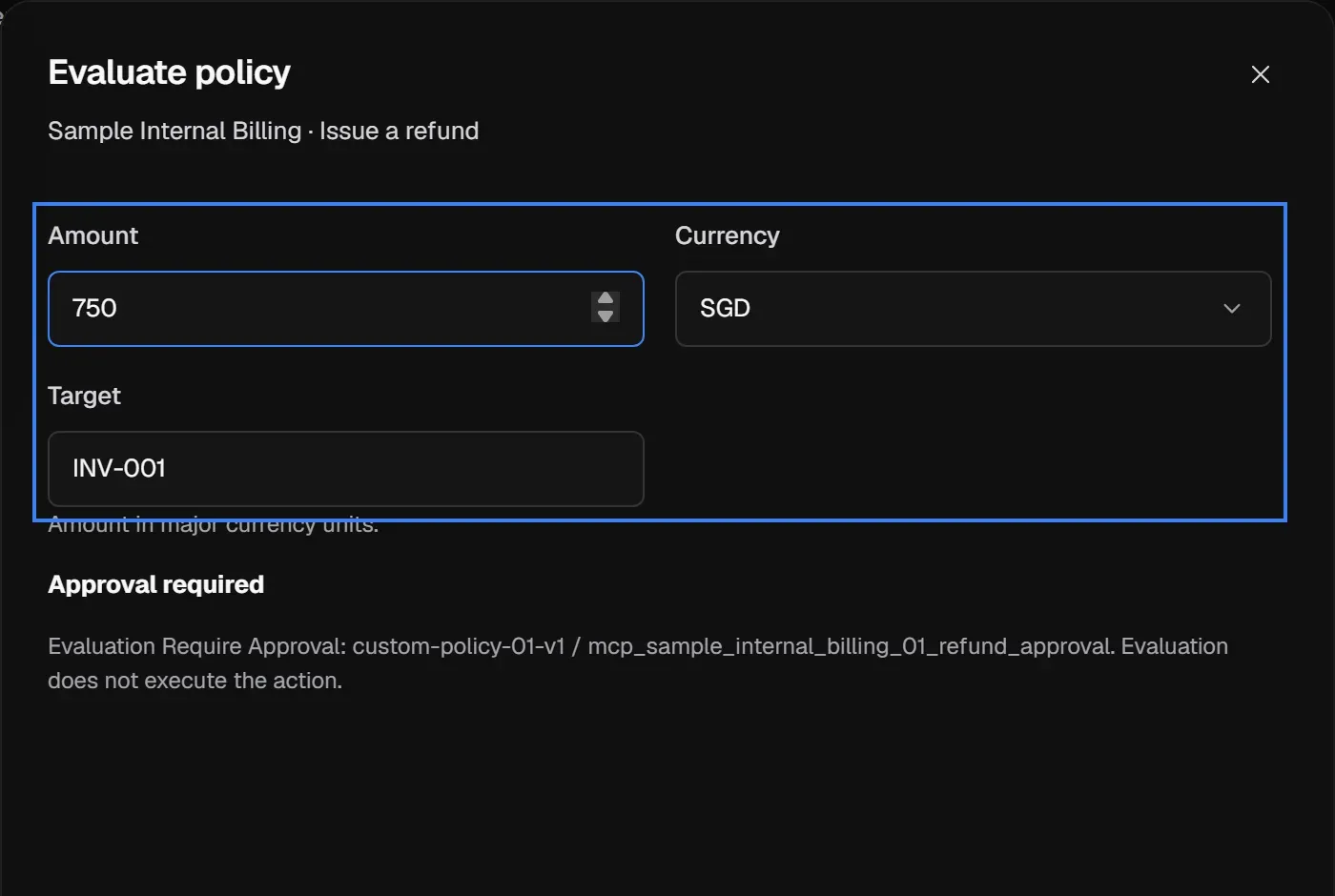
Select Evaluate policy. Enter a safe test Amount, Currency and Target. The decision updates as you type. Evaluation does not execute the action.
-
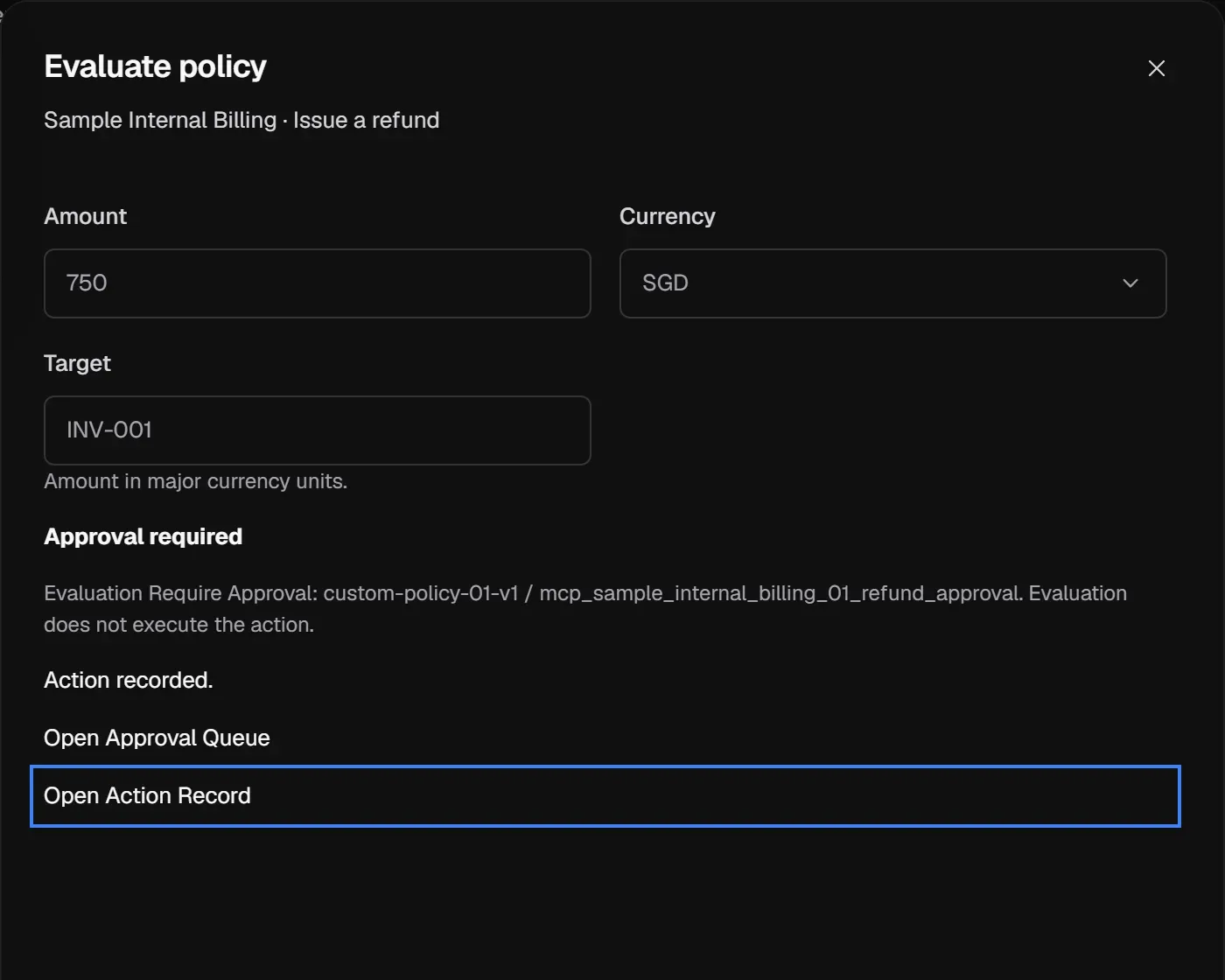
Select Record result (or Request approval, when the decision is Require Approval). Aethis records the evaluated action.
To try it for real, make the same call from your agent. Aethis applies the same Policy to the live call. New Agents default to Observe Mode: the decision is recorded, but the call isn’t blocked or held. Check the Agent’s mode before interpreting the outcome; Enforce applies the policy decision.
5. Inspect the Action Record
Section titled “5. Inspect the Action Record”Select Open Action Record. The record opens in Activity and shows what Aethis decided and why.
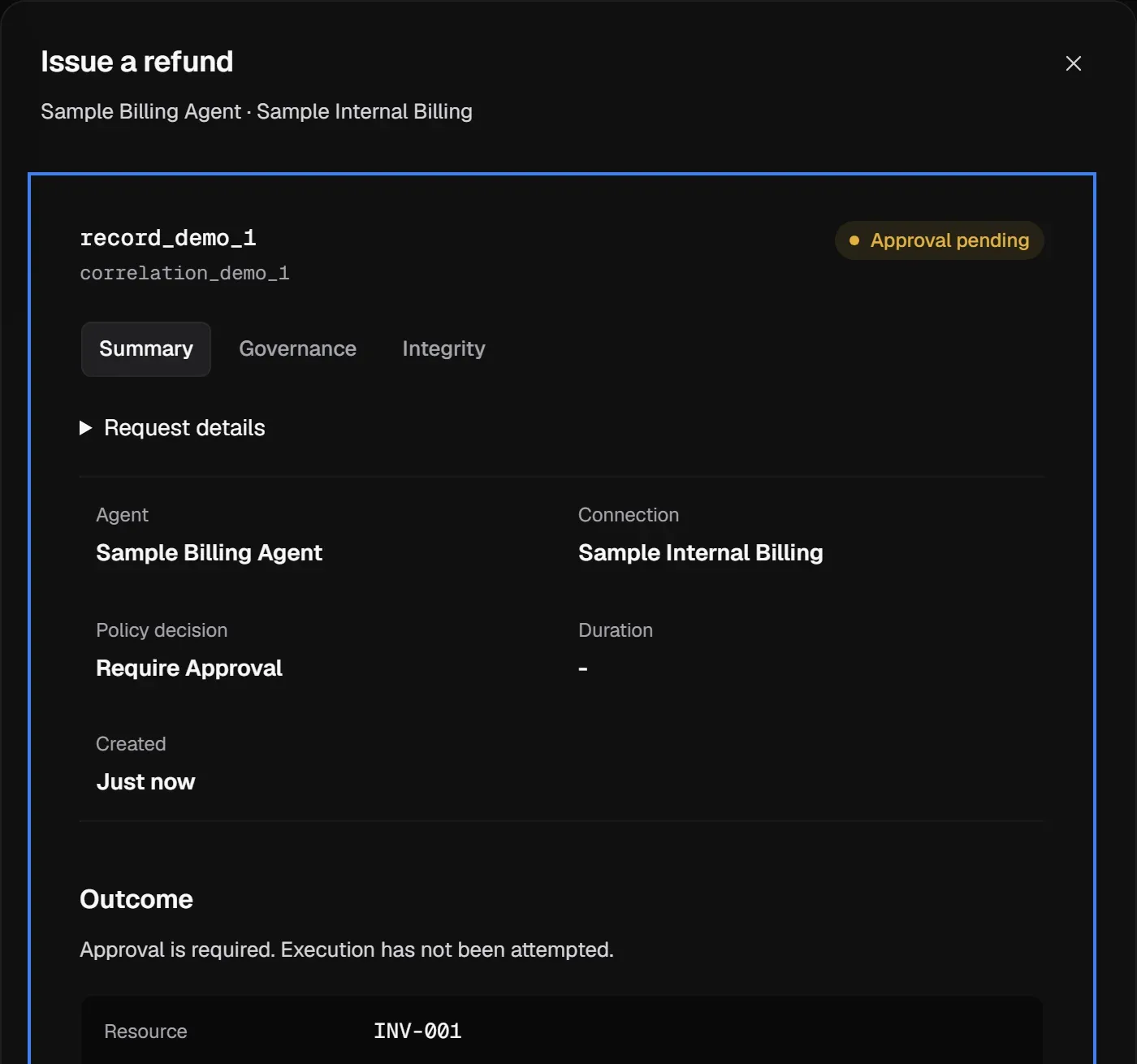
Check three things:
- Summary: the Agent, Connection, Policy decision and Outcome match what you expected. A recorded evaluation that needs approval shows Approval pending; a live allowed call moves through Allowed, awaiting execution and Execution in progress to Execution succeeded. Outcome unknown means the result was lost after the call may have run; it is never reported as failed. See Action outcomes.
- Governance: the Policy version and matched rule are the ones you meant to apply.
- Integrity: the record’s link status. See Action Records.
If the decision was Require Approval, open the request from Open Approval and review it in the Approval Queue.
Next steps
Section titled “Next steps”-
Verify a governance boundary: check the policy, mode, and execution outcome together.
-
Observe Mode: see what a policy would block before you enforce it.